
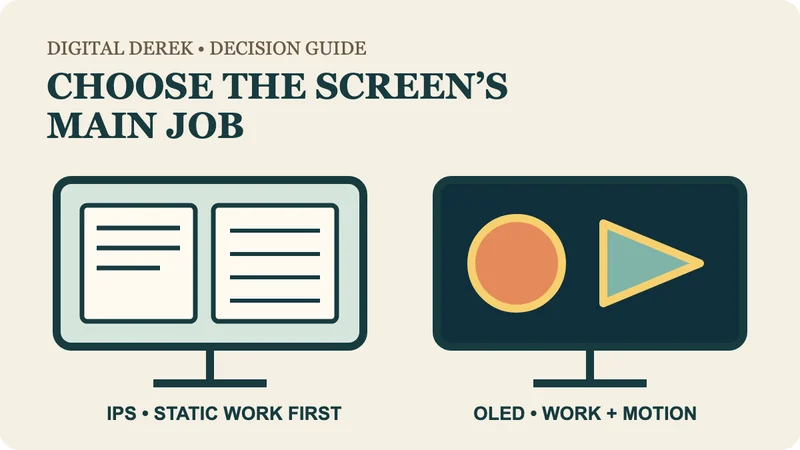
Choose for the hours, not the demo clip
For a workday dominated by documents, spreadsheets, dashboards and browser chrome, an IPS monitor is the simpler starting point. For a desk that also serves fast gaming, video or dark-room entertainment, OLED's rapid response and deep blacks may earn the extra care. The decision is about the screen's repeated job, not which panel looks most dramatic in a store.
| Main job | Useful starting path | Check before buying |
|---|---|---|
| Long sessions with static toolbars and windows | IPS | Resolution, text size, contrast and ergonomics |
| Work plus fast gaming or motion review | OLED | Static-image risk, refresh routine and room glare |
| One-cable laptop desk | Either panel type | USB-C video, charging wattage, KVM, Ethernet and downstream ports |
| Mostly text at 27 inches | Compare 4K examples | Operating-system text rendering and comfortable scaling |
| Existing screen already fits the work | Keep it | Adjust scaling and lighting before upgrading |
RTINGS' IPS-versus-OLED guide says higher pixel density narrows text-clarity differences and identifies static interface elements as an OLED burn-in risk. Canada's Centre for Occupational Health and Safety makes the same general caution about persistent static images on OLED displays. Risk varies with use and mitigation; neither source provides a guaranteed lifespan for your desk.
Compare the same 4K desk size
Dell's UltraSharp U2725QE and Alienware AW2725Q are both roughly 27-inch 4K monitors, so the comparison does not confuse panel type with resolution. The IPS Black U2725QE lists 3840 by 2160 at up to 120 Hz and 163 pixels per inch. It also acts as a desk hub: Dell lists Thunderbolt 4 with up to 140 watts of power delivery, DisplayPort output, a KVM and 2.5-gigabit Ethernet.
The QD-OLED AW2725Q lists 3840 by 2160 at up to 240 Hz and a claimed 0.03-millisecond gray-to-gray response. Its main video connections are DisplayPort and HDMI; the listed downstream USB-C port supplies up to 15 watts rather than serving as the U2725QE-style laptop video-and-charging dock.
These are different roles as well as different panels. Paying for OLED does not automatically replace a dock, and paying for a dock-style IPS does not create OLED motion or black-level behavior.
Read the independent tests by task
RTINGS purchased and tested both exact monitors under its current monitor methodology. Its U2725QE review describes that model as excellent for office work, highlighting text clarity, ergonomics and connectivity while noting weaker fast-motion handling. Its AW2725Q review highlights sharp 4K text, contrast and motion handling, but retains burn-in risk from static elements and weaker handling of intense glare as office cautions.
That disagreement is useful: the OLED can be capable of office work without being the lowest-friction office choice. The IPS can be the more complete laptop desk without being the stronger motion display.
Include panel care in the OLED decision
Dell's panel-health guidance lists the AW2725Q among OLED models with panel-health states and Pixel Refresh or Panel Refresh routines. Plan to use those care routines; persistent static content still carries burn-in risk. If the display will show the same menu bar, taskbar, spreadsheet grid or application frame for hours, decide whether you will follow the maker's care guidance and tolerate the residual risk.
For IPS, the practical checks move elsewhere: dark-room contrast, backlight behavior, viewing position and whether the hub supports the laptop's video and power needs. Panel category never replaces an exact connection map.
Separate panel technology from resolution
If 1440p versus 4K is still unresolved, use the 27-inch resolution and scaling comparison first. If the question is one wide canvas versus two displays, compare ultrawide and dual-monitor layouts. Those decisions can change the desk more than OLED versus IPS.
Choose IPS for a static-work-first, lower-maintenance role. Choose OLED for a mixed-use role where motion and contrast matter enough to accept its care boundary. Then verify the exact ports, charging, stand, warranty and computer mode before treating either as the complete desk solution.