
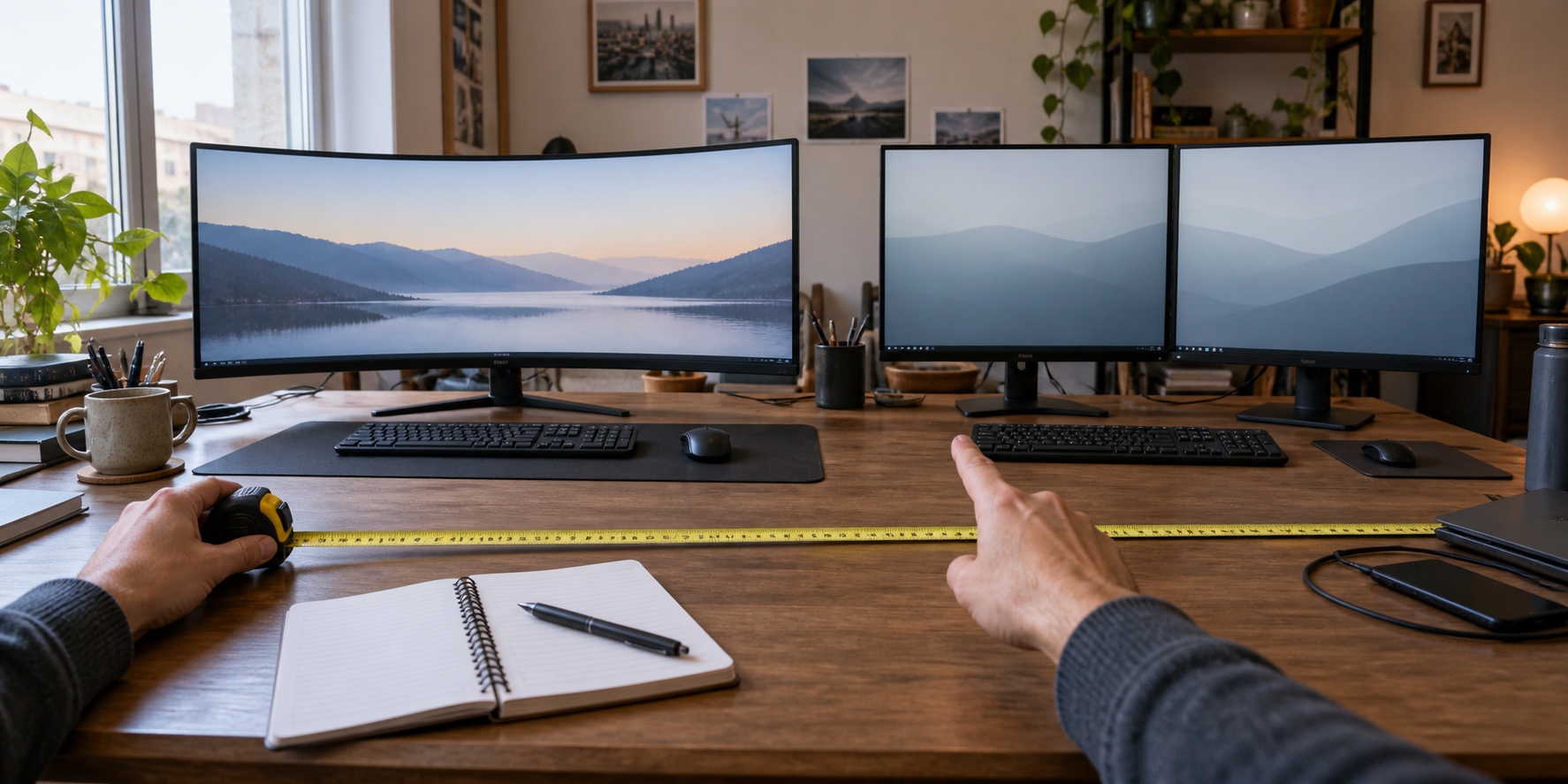
Map the windows before counting screens
An ultrawide and two monitors can both create a larger desktop, but they organize it differently. A single ultrawide provides one continuous surface. Two displays create separate zones that can use different orientations and positions.
Start with the work you repeat. Sketch where the main document, reference material, meeting window and tools should sit. Then check whether the computer can drive the proposed display count and resolution. The screen arrangement comes after those two decisions.
| Your regular job | Useful starting path | Confirm first |
|---|---|---|
| Wide timeline, spreadsheet or canvas that benefits from one uninterrupted area | Ultrawide | App scaling, usable resolution and curve or flat-panel preference |
| Two full-screen apps kept separate | Dual monitors | Supported external-display count and required ports |
| One landscape screen plus one portrait document or code screen | Dual monitors | Rotation, stand or arm clearance and cable reach |
| Laptop officially supports only one external display | One ultrawide, or keep the laptop screen as the second area | Exact computer model, operating system and dock limitations |
| Narrow desk, tight wall clearance or limited mounting points | Paper-fit both layouts | Screen dimensions, bases, arms, speakers and viewing distance |
Pixel counts do not settle the layout
As a current, normalized example, Dell lists the 34.1-inch UltraSharp U3425WE at 3440 × 1440. Dell lists the 27-inch P2725DE at 2560 × 1440, so two of those panels provide a calculated 5120 × 1440 desktop when the host supports both.
That calculation is not a verdict. Two panels introduce a center seam, two bases or mounting points and another display connection. The ultrawide has fewer horizontal pixels than this exact dual example, yet it keeps a continuous center area. Text scaling, application behavior and comfortable viewing distance can matter more than the larger number.
If resolution is the unresolved decision, compare 1440p with 4K for office work separately. Do not assume that the same diagonal size creates the same readable workspace at every resolution.
One 34-inch screen takes less width than two 27-inch screens
In these exact examples, Dell lists widths with the supplied stands of 32.03 inches for the U3425WE and 24.11 inches for the P2725DE. Two P2725DE monitors side by side span a calculated 48.22 inches before any gap or toe-in angle. That is 16.19 inches more width than the single U3425WE.
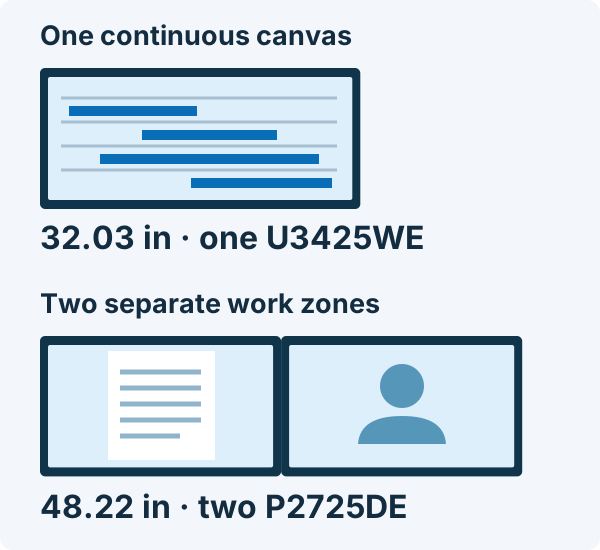
- Dell U3425WE: one display, 32.03 inches wide and 9.47 inches deep with its stand.
- Dell P2725DE: two units span a calculated 48.22 inches before any gap or angle; each is 7.57 inches deep with its stand.
Widths and depths include the supplied stands. The dual setup needs two units. These manufacturer-store links identify the exact models; compare their current options and return terms before ordering.
Rehearse a meeting as well as your normal work
If screen sharing is a daily job, rehearse it in your actual meeting app. Put the document you want to share in its own window, keep private material elsewhere, and check the participant view. Choose the arrangement that makes that routine easy without assuming your app will treat every screen layout the same way.
The computer can remove one option
Check the exact computer, chip, port and operating-system support page. Apple's technical specifications for the 2022 M2 MacBook Air, for example, list support for one external display up to 6K at 60 Hz. A dock cannot turn an unsupported native display arrangement into a guaranteed one merely because it has two video sockets.
The Dell U3425WE example accepts Thunderbolt 4 and lists up to 90 W power delivery. The P2725DE lists USB-C DisplayPort Alternate Mode with up to 90 W and DisplayPort output with Multi-Stream Transport. Those are product capabilities, not proof that every laptop will support every dual-display chain. Use the dock setup checklist to match host support, outputs, cables and charging before ordering screens.
Fit the complete desk, not just the panel width
Measure the display bodies, bases and clearance behind them. Add the keyboard, pointing device, notebook, speakers, camera and any laptop stand. Two narrow bases can consume more useful depth than one wide base; one large curved base can also interfere with the keyboard area.
If arms are part of the plan, check each display's mounting pattern and weight as well as the desk edge, underside structure and wall gap. The monitor-arm-versus-stand guide walks through those fit checks. Cable length must cover the farthest position without pulling on a port.
Use as you go
Your working checklist
0 complete
Ten-minute layout test
Choose the workspace, then the model
Choose an ultrawide for one continuous working surface and a one-display host path. Choose dual monitors when separate app zones, orientation or independent positioning earns the extra connection and hardware. Keep the current screen when a better window layout or laptop-screen pairing already solves the job.
The next purchase question is exact fit: panel dimensions, resolution, scaling, host support, stand or arm requirements and return terms. A category choice is useful only when the complete desk can support it.