
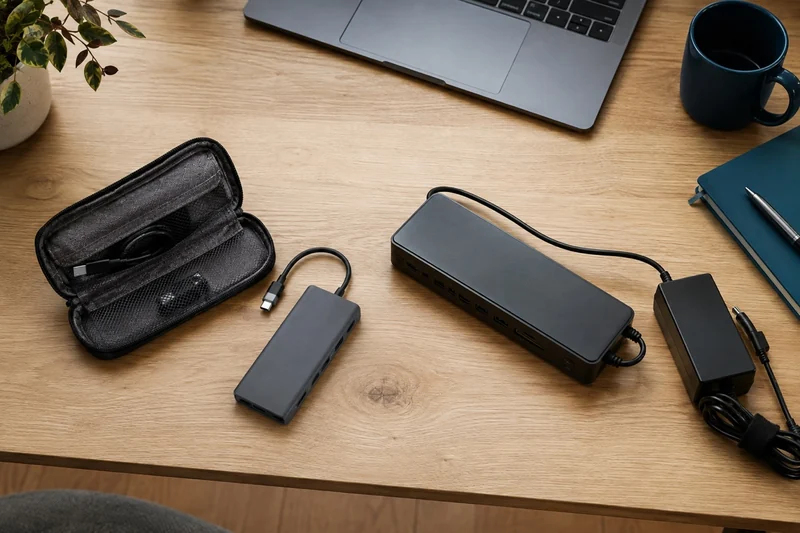
Start with the equipment you connect each day
A second monitor, keyboard and wired network make a useful desk. The best format is the one that connects those devices with the least daily handling. If your laptop already has the right display outputs and you are happy connecting its charger separately, extra hardware may add little.
| Your setup | Start here | The check that matters |
|---|---|---|
| One screen, a mouse and occasional travel | Compact USB-C hub | Laptop video support and the hub’s single-screen mode |
| Two screens that show different windows | Dock or hub with documented extended-display support | Exact laptop, operating system and simultaneous resolution |
| A desk you connect with one laptop cable | Powered docking station | Host charging output and included power supply |
| Personal Mac and employer-managed Windows laptop | A dock verified for each computer | Video support and permission to install required software |
| Fast storage and several demanding accessories | Compatible Thunderbolt dock | Host capability and the connections you will actually use |
Already know you want a shortlist? Compare the Anker 565, Plugable UD-6950PDH and CalDigit TS4 by screens, charging and required extras.
A hub can be enough for a compact desk
The Anker 565 is a useful example of why size and product names only tell part of the story. Its manufacturer documentation lists HDMI, DisplayPort, USB accessories, Ethernet and memory-card connections in a compact unit. It also accepts power from a separate charger, so a small hub can still reduce the cables going into the laptop.
For two independent screens, the operating system changes the result: Anker documents different content on the two external displays for Windows, while its two outputs mirror each other on a Mac. Its A8388 manual also separates single-screen and two-screen resolution. Use the two-screen specification for a two-screen desk.
A powered dock earns its space at a permanent desk
A dock with its own supply lets the charger, displays and accessories stay connected between laptop visits. Put it where its power button, card slots and host cable remain easy to reach. Check the power brick and cable bends as well as the dock’s footprint before hiding it under the desk.
The CalDigit TS4 adds downstream Thunderbolt connections and 2.5 Gigabit Ethernet for compatible hosts. Those capabilities can matter for fast storage or a suitably equipped network. They add less when the daily job is a keyboard, mouse and ordinary office documents.
Two displays can use different methods
Native display connections depend on the laptop’s supported video outputs. DisplayLink docks use software to add displays over USB. The Plugable UD-6950PDH supports two 4K displays at 60 Hz through DisplayLink, including on supported Macs with a lower native display limit. Software permission and the intended workload matter: Plugable positions this route for office work and warns about games, video editing and protected-video limitations.
For a supported MacBook Air or Windows laptop, build your monitor connection list. The same guide explains how to check other computers. Then choose the smallest setup that covers your actual screens, charging and accessories, with room for the connections you use most often.