
Choose by the screens you want to use
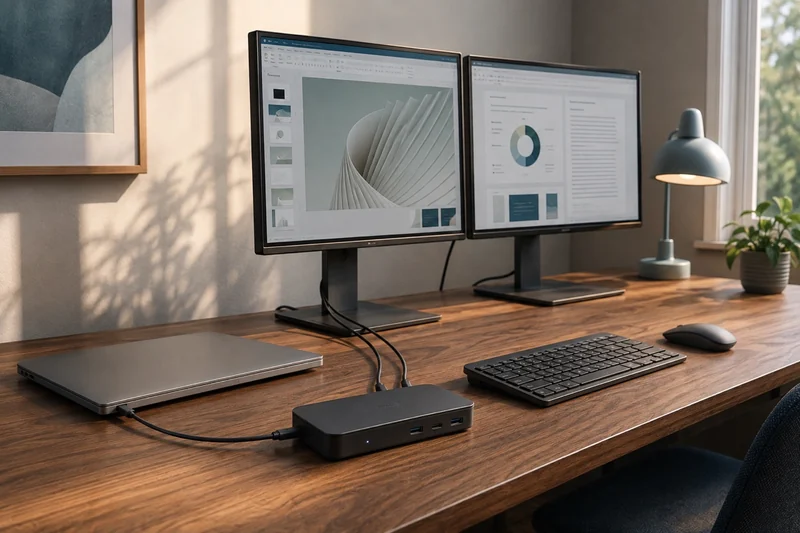
Two monitors showing different windows is the goal here. These three products offer different ways to get there; each has a useful role once the laptop matches. For a supported MacBook Air or Windows laptop, build a connection list for the screens you own. The guide also explains what to check for other computers.
Anker 565: a compact Windows setup
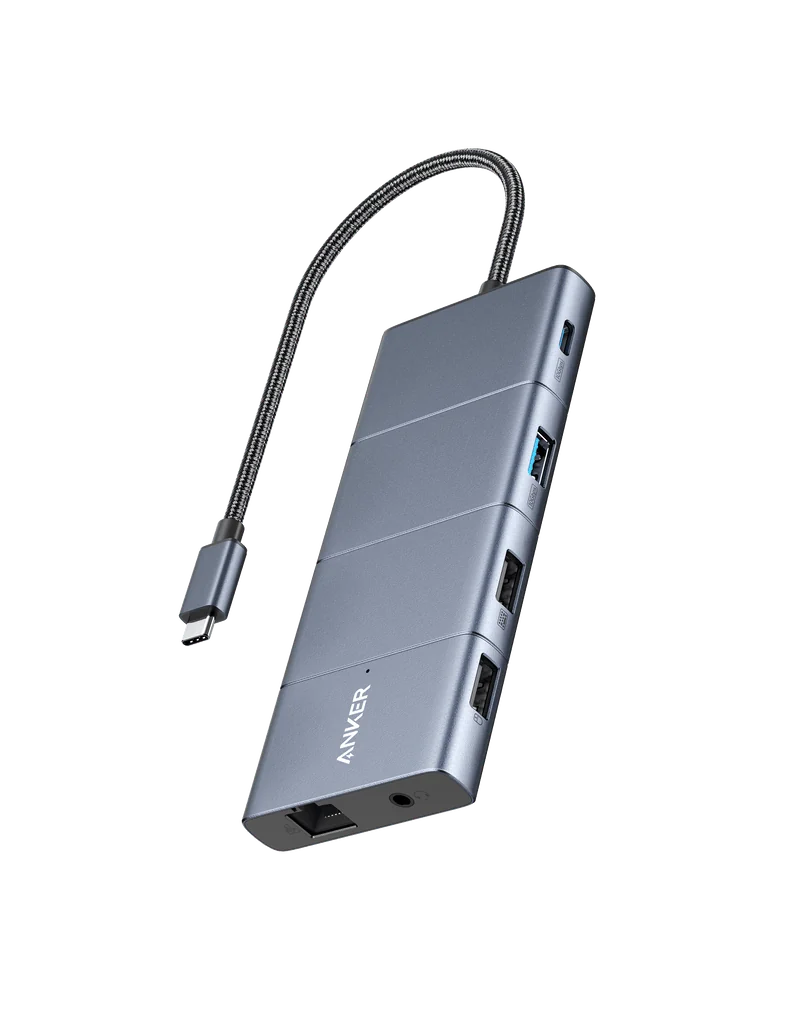
The Anker 565 A8388 suits a desk built around two 1080p screens and a compatible Windows laptop. It combines HDMI and DisplayPort with useful accessory connections, and its attached host cable makes it easy to pack away.
Anker’s exact-model manual lists two 1080p displays at 60 Hz with a DisplayPort 1.2 host, and up to “2K” at 60 Hz with a DisplayPort 1.4 host. The latter label does not specify pixel dimensions; confirm your exact higher-resolution mode with Anker. Its 4K-at-60-Hz claim applies to one display with the required host support.
The buying check: the two external outputs mirror each other on a Mac. For laptop charging, add a suitable USB-C PD charger and charging cable; the hub’s 100 W input is distinct from its maximum 85 W output to the laptop. Check the complete setup before treating the hub as the lower-cost route.
Plugable UD-6950PDH: two screens through DisplayLink
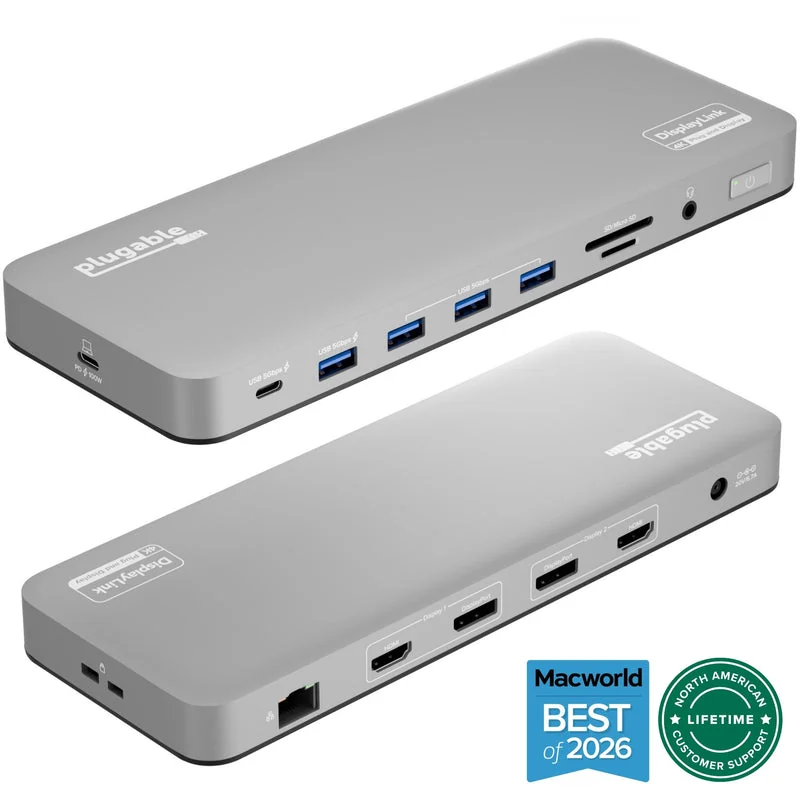
The Plugable UD-6950PDH is an office-work option when a supported laptop needs more screens than its native video connection provides. Choose HDMI or DisplayPort within each of its two display groups. Four sockets serve two displays, so they are not four independent outputs.
The current manufacturer page specifies two 3840 × 2160 displays at 60 Hz and up to 100 W host charging. Its current port layout includes a front USB-C accessory port; older reviews describe a version without that port. Match the seller’s unit to the current layout before ordering.
The buying check: DisplayLink software is required. On a Mac, installation also needs the system’s screen-recording permission. Check with IT before choosing this for a managed laptop. Plugable does not recommend this dock for gaming or video editing, and warns that connecting it can prevent protected-video playback on macOS, including on other displays. Choose it for the office work it is designed to support.
CalDigit TS4: native displays and demanding accessories
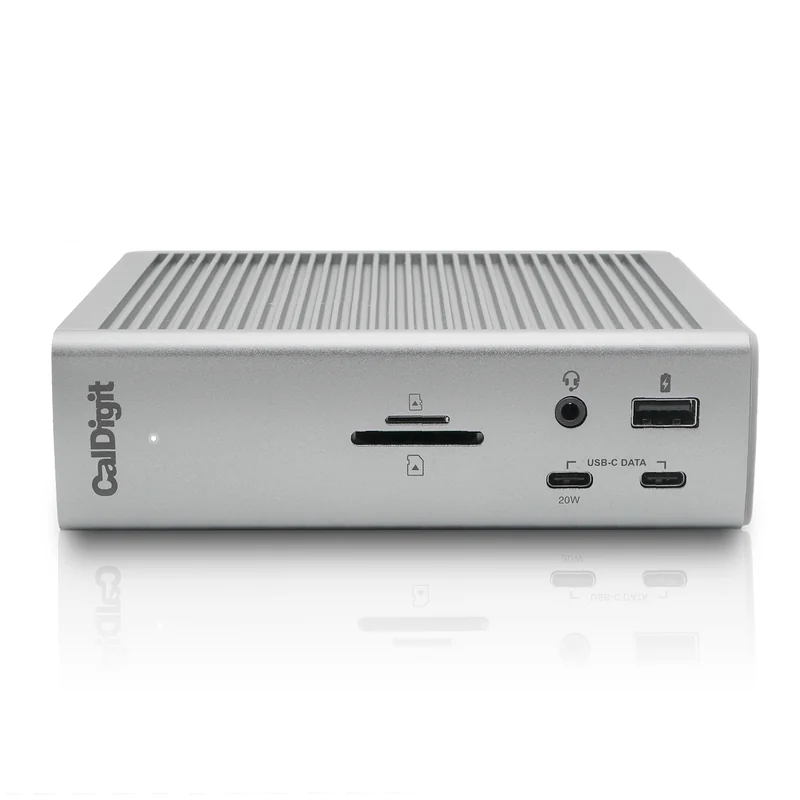
The CalDigit TS4 offers a different reason to spend more: downstream Thunderbolt ports, 10 Gbps USB accessory ports and a 2.5 Gigabit network connection on supported hosts. A compatible two-display computer can use its native video capabilities without a DisplayLink display driver.
CalDigit’s compatibility guidance distinguishes the laptop generations and connections. A base M1 or M2 Mac remains limited to one native external display through this dock. “Works with USB-C” also does not promise the full Thunderbolt feature set: Ethernet needs Thunderbolt or a USB4 host with PCIe support.
The buying check: there is no built-in HDMI socket. Price suitable display adapters or cables, plus the screen connections you need. Its included supply delivers up to 98 W to the laptop; a laptop with higher sustained power needs may still need its own charger.
Share the desk between two computers
A dock expands one computer’s connections. If you want a work laptop and personal computer to stay connected and share the same screen, keyboard and mouse, compare a KVM monitor or external KVM switch. That choice determines whether you keep the displays and where each computer’s video and USB cables go.
Finish with a complete connection list
Match the laptop first, then compare the equipment needed to finish the connection:
| Your route | Put on the setup list | Check before ordering |
|---|---|---|
| Anker 565 with a supported Windows laptop | Hub, suitable USB-C PD charger and charging cable, plus both display cables | The two-screen mode your laptop supports and the hub’s 85 W maximum laptop output |
| Plugable UD-6950PDH for office work | Dock with its supply and host cable, plus both display cables | Permission to use DisplayLink; protected-video restrictions on macOS |
| CalDigit TS4 with a supported native-display laptop | Dock with its supply and host cable, plus display cables or adapters | Laptop display-count support; HDMI screens need a suitable adapter or cable |
The included supplies and host cables are documented by Plugable and CalDigit. Check the exact seller’s package before comparing totals. Compare dock price + missing charging equipment + display cables or adapters + checkout charges. That gives you two complete setups to price.
Leave room for the power brick and cable bends in your under-desk cable plan. Once those pieces fit, choose the dock that supports the desk you will actually use.
Use a wired desk connection when it fits
Before buying more Wi-Fi equipment only for the desk, check whether a wired network connection through the dock meets the job. For the rooms and wireless devices that still need coverage, compare a mesh system with an extender. An Ethernet port on the dock gives the computer a connection; it does not turn the dock into a wireless access point.
Check the dock’s Ethernet path for NAS work
A dock that runs both screens can still set the pace of wired file transfers. Check its Ethernet link rate against your NAS and switch. The Gigabit versus 2.5GbE switch guide shows why a faster switch helps only when the computer’s connection can use it.