
Buy room for the next set of files
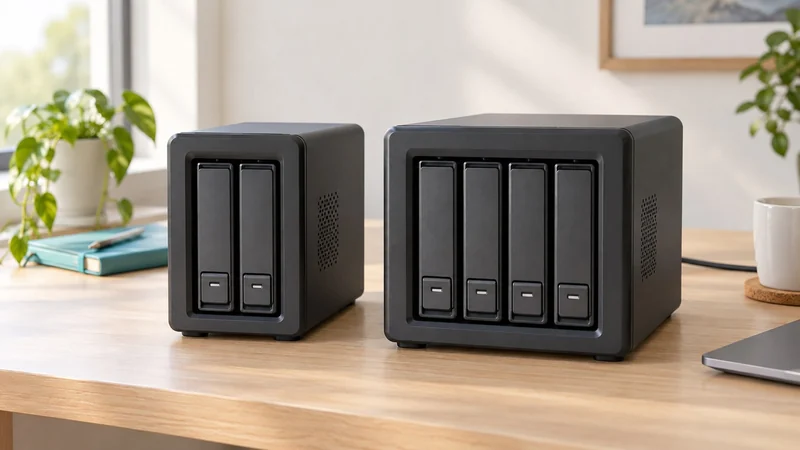
A two-bay NAS is a practical shared-storage starting point when two compatible drives cover your foreseeable library. Four bays become useful when you expect to add storage without replacing the first pair of drives. The extra space is an expansion option, not free capacity.
If only one computer needs an occasional backup, start with NAS versus an external drive. This comparison is for buyers who have already decided that shared storage is worth setting up and maintaining.
The capacity you can actually plan around
Consider equal 4 TB drives and single-drive redundancy. A two-drive mirror has roughly one drive’s capacity available; a four-drive RAID 5 layout has roughly three. The illustration below uses advertised decimal capacities before system and filesystem overhead.
| Enclosure and populated bays | Example layout | Capacity before overhead | Empty SATA bays |
|---|---|---|---|
| Two-bay, two 4 TB drives | RAID 1 mirror | 4 TB | 0 |
| Four-bay, two 4 TB drives | RAID 1 mirror | 4 TB | 2 |
| Four-bay, four 4 TB drives | RAID 5 | 12 TB | 0 |
The third row costs two additional drives as well as a larger enclosure. It does not describe a faster measured system. Synology’s calculator accounts for binary display units and explains reserved space. Use it with the actual drives and RAID type before ordering.
Two bays for a settled storage need
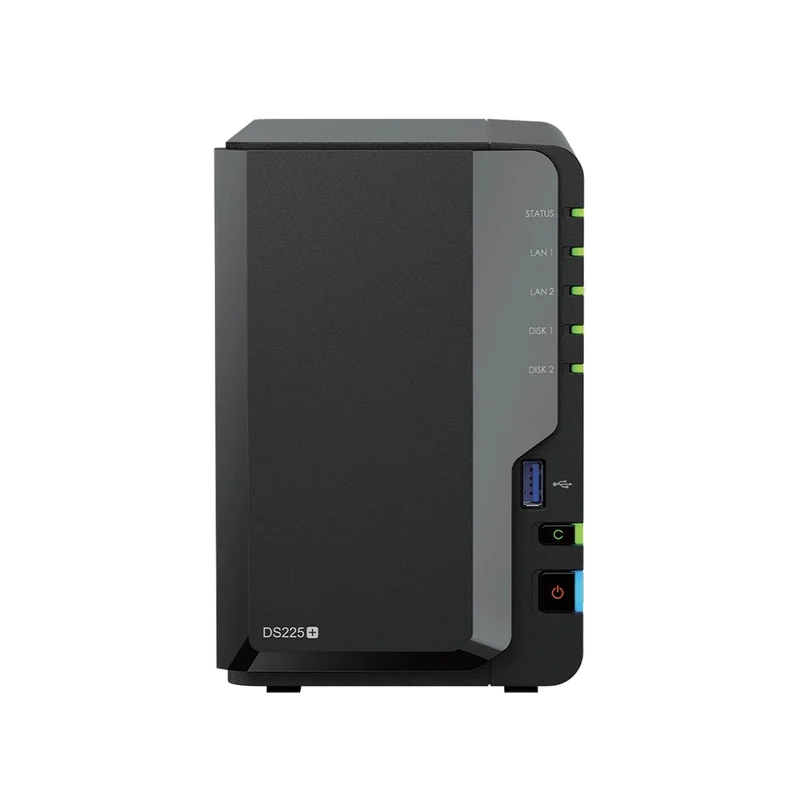
The Synology DS225+ diskless enclosure is worth considering for a compact shared library that comfortably fits a mirrored pair. Its documented hardware includes a 2.5GbE port and 2 GB of memory.
The catch: once both bays are full, you cannot add a third internal drive. A larger-capacity mirrored pair generally means buying two replacements and completing the supported migration or rebuild process.
Four bays for a growing library
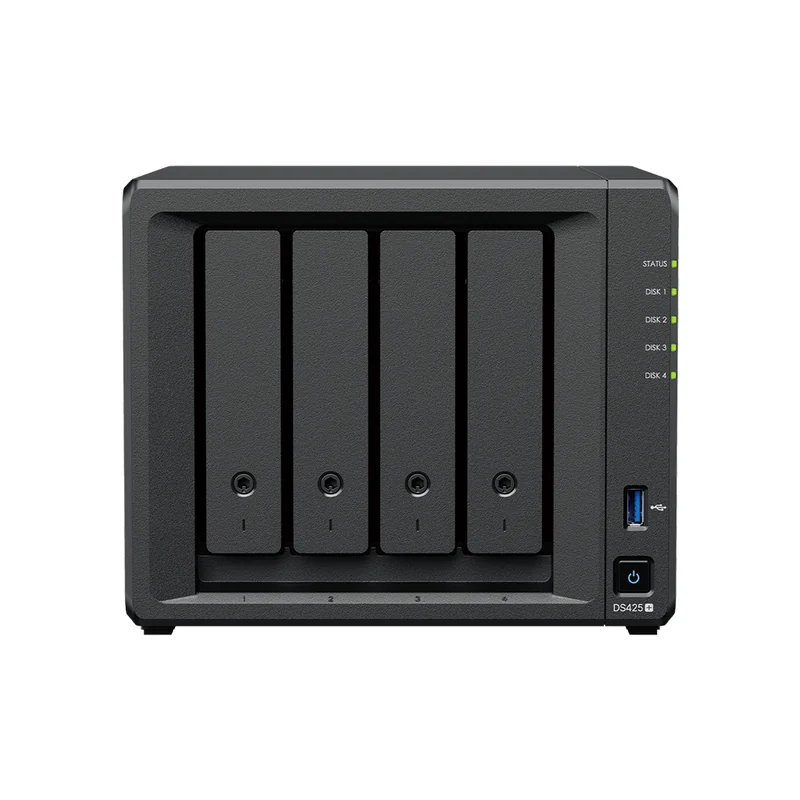
The Synology DS425+ diskless enclosure adds two SATA bays. Its specifications show the same installed memory and network-port rates as the DS225+, so the main comparison here is expansion room.
The catch: unused bays do not back up anything. Buy enough compatible drives for the protection you intend to use, and leave room in the budget for a separate backup.
Check how expansion works before you need it
Synology’s expansion guidance distinguishes adding drives from replacing them. With equal-size drives in SHR-1, at least two must be replaced with larger drives to gain capacity. Adding a drive also depends on the supported layout and size rules. Do not assume every RAID arrangement expands the same way.
This is buying guidance, not a drive-removal procedure. Follow the model’s instructions and protect a current independent copy before changing a working storage pool.
Price a complete, compatible setup
Compare enclosure, initial drives, a separate backup destination and any required network adapter or switch. Both linked offers are diskless. Use the NAS versus desktop drive guide to check workload and exact drive models, then check Synology’s current compatibility list for your system and DSM version.
Choose two bays when capacity is predictable. Choose four when adding drives later is worth the extra enclosure cost today. If file transfer time matters, check the whole 2.5GbE path separately; more drive bays alone do not guarantee faster backups.