
Start with what happens after the first backup
The first full copy can take a while; the better question is whether the drive fits the routine you will keep. A photographer moving large folders between locations may benefit from an SSD every day. A household backing up documents overnight may care more about capacity and a dependable schedule.
If you are scanning household paperwork, choose where the files will live and how they will be backed up before discarding anything. Putting the only copy on an external drive is storage, not an independent backup of that file.
A portable SSD for frequent file work
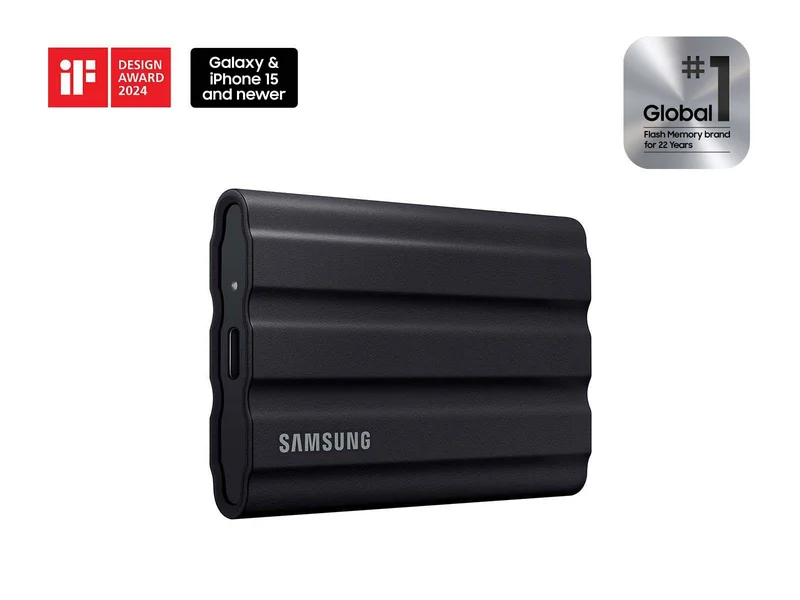
The Samsung T7 Shield 2TB is a useful example when you want a compact drive for regular transfers. Samsung's Rev. 2.0 data sheet lists a USB 3.2 Gen 2 interface, sequential reads up to 1,050 MB/s and writes up to 1,000 MB/s. Those are manufacturer test figures, not our measured backup speed.
The catch: the computer, connection, cable and workload all affect transfer speed. Buying a faster drive does not make every USB port faster. Check the exact port on your computer or docking station before paying for a transfer rate you cannot use.
Samsung also lists IP65 protection under its test conditions. That does not mean waterproof, and its data sheet excludes liquid, dust and drop damage from the warranty. Choose it for the documented design and connection that fit your routine, while keeping a separate backup.
An external HDD for scheduled copies
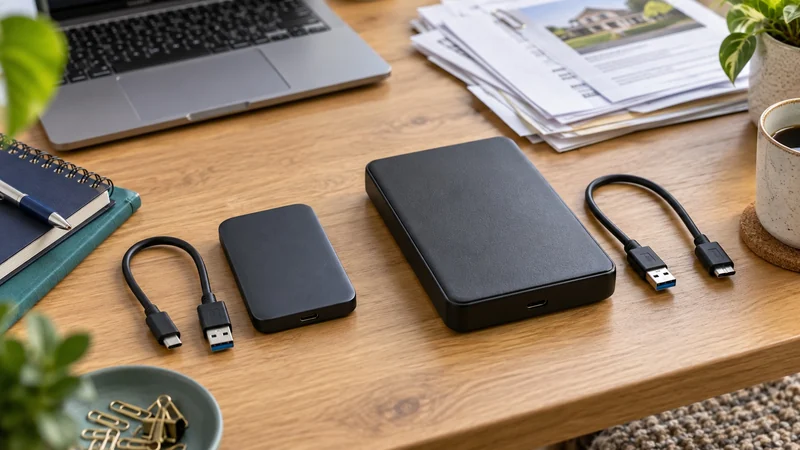
The Seagate Expansion Portable 2TB, STKM2000400, provides a concrete HDD alternative at the same stated capacity. Its US specification sheet lists USB-powered operation and an included 18-inch USB 3.0 cable. A separate power adapter is not part of this portable drive's setup.
The sheet does not provide a directly comparable sustained file-transfer result. USB 3.0 identifies the interface; it is not a promise that the drive writes files at the interface's maximum data rate. Check your actual backup window rather than treating a USB specification as a stopwatch result.
The catch: an HDD contains moving parts. Kingston's explanation of external storage describes that mechanical difference and the usual speed/capacity tradeoff. Keep a working hard drive stable and protected from knocks. For a drive that travels every day, the SSD's absence of a spinning mechanism is a relevant design advantage, not a guarantee against data loss.
See Seagate's Expansion product support and model list. Match STKM2000400 rather than treating every Expansion generation, desktop model or capacity as the same device.
Compare the cost of the backup plan
Compare current prices at the capacity you need, including any required cable or backup software. Check both current offers at the same capacity before deciding which is better value. A larger capacity or a second independent copy may be more useful than a faster single drive if your routine already finishes comfortably.
Leave room for file growth and the versions your backup software retains. Check the software's requirements before formatting a drive; reformatting can erase existing data. Seagate's sheet notes that Time Machine use requires reformatting, so follow the current instructions for your Mac and the exact drive.
Finish with a copy you can recover
CISA's backup guidance recommends multiple copies, separate storage and an off-site copy, together with protection and restore testing. Those principles matter more than declaring either drive type universally reliable.
A practical purchase decision is straightforward: choose the SSD if repeated transfers and portability justify it; choose an HDD if it fits your backup window and capacity budget. Then restore a few representative files to a separate location and open them. A drive purchase is useful when it becomes a backup routine you can trust.
If power interruptions are also a concern, the UPS and power-station comparison addresses keeping equipment running long enough to finish or shut down. Backup power and backup copies solve different problems.
When several devices need the same files
A direct USB drive suits one connected computer. When several devices need shared folders or centrally managed backups, compare a NAS with an external drive. Include the NAS enclosure, compatible storage drives and its own independent backup in the budget. Moving the only copy onto shared storage does not create another copy.
When a second computer changes the setup
A drive attached to one computer may be enough for a local backup. When several people need shared files, use NAS versus external drive for the approach, then two-bay versus four-bay NAS for expansion room. A shared NAS still needs an independent backup copy; moving the only copy onto it does not create one.