
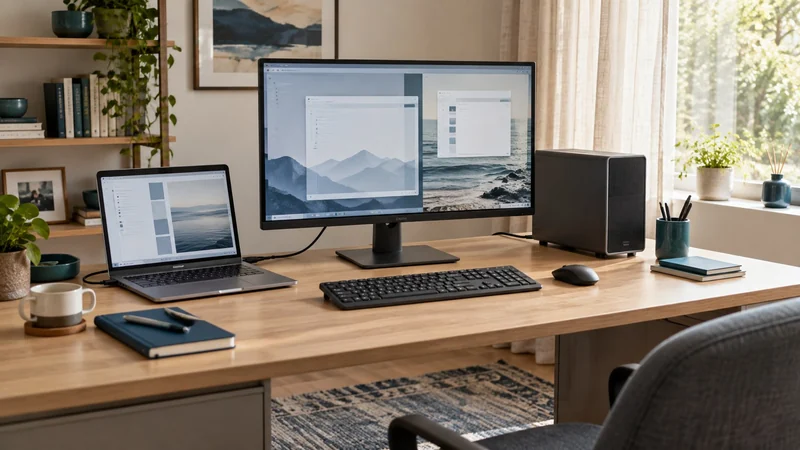
Buy for the switch you make every day
The useful upgrade is moving from your work computer to your personal computer without rebuilding the desk. A built-in KVM puts that job inside the monitor; an external box lets you choose the display and switching hardware separately.
Start with the equipment you want to keep. If the current screen already fits your work, compare the complete external-switch setup before replacing it. If you want a sharper display and laptop charging too, a KVM monitor can combine several useful changes in one purchase.
Two connections make the desk work
A picture on the monitor does not mean the keyboard is connected to the same computer. Each computer needs a video route and a USB data route. A suitable Thunderbolt or USB-C video connection can carry both; HDMI and DisplayPort need a separate USB connection for peripherals. Dell's KVM setup guide explains how the upstream USB ports connect those computers.
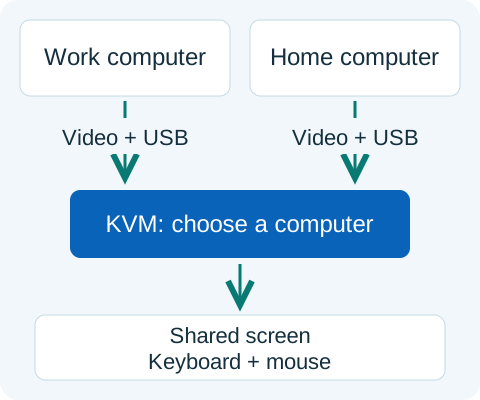 Open full-size illustration (new tab) ↗
For two independent displays, trace two video outputs from each computer. An external KVM cannot add a second native display output that the computer does not support. A dual-monitor dock may be part of that route, but expanding one computer's ports and switching between two computers are separate jobs.
A screen upgrade: Dell U2725QE
The Dell U2725QE is worth considering when a 27-inch 4K screen, a USB hub and laptop charging all serve your desk. Its user guide shows a useful pairing: one computer on Thunderbolt, the other on HDMI plus the separate USB-C data-only upstream port. Assign the HDMI input to that USB connection in the monitor menu.
The charging benefit belongs to the Thunderbolt host connection. Dell specifies up to 140 W with compatible USB PD EPR devices and up to 90 W otherwise. The second USB upstream port is data-only, so plan separate laptop power on that side. That makes this a particularly clear fit for one compatible work laptop plus a desktop computer.
The guide also distinguishes Auto KVM from the USB-switch shortcut used in picture-by-picture or picture-in-picture mode. Follow the instructions for the way you want to work, rather than assuming every switching control behaves the same way.
Keep two DisplayPort screens: StarTech P2DD46A2
 Open full-size illustration (new tab) ↗
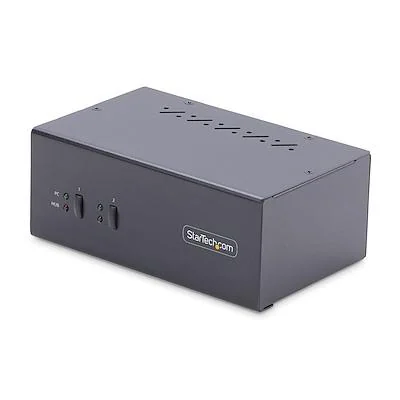
StarTech's P2DD46A2-KVM-SWITCH is a specific example for two computers that can each supply two DisplayPort outputs. Its specification sheet lists dual 3840 × 2160 at 60 Hz, two USB 5 Gbps accessory ports, two keyboard/mouse ports, and button or hotkey switching.
The main purchase check is the cable count. The quick-start guide calls for separate display and USB host connections; the box includes its power adapter, but the data and display cables are additional. For the full two-screen setup, count four computer-to-switch DisplayPort leads, two switch-to-monitor leads and two USB host leads. Check any adapters against the required display mode.
See the exact P2DD46A2 model at StarTech. Choose it for a compatible dual-DisplayPort desk where retaining the screens matters more than reducing the number of cables.
When a USB switch is enough
If you change computers once at the end of the workday, pressing the screen's input button may already be convenient. A USB-only switch then moves the keyboard and mouse, while video stays connected directly to the display. RTINGS explains this simpler alternative alongside built-in and external KVMs.
Choose a full KVM when switching several times a day makes coordinating those separate controls tedious. For webcams, storage drives or specialist peripherals, check the exact switch's supported devices and data ports before adding them to the shared group.
Use as you go
Your working checklist
0 complete
Match the setup before buying
Once both computers have a complete route, use the desk cable guide to keep the switch reachable and the leads tidy. The right setup lets you change computers while keeping the desk you enjoy using.
Sharing a desk and sharing files are different jobs
A KVM moves screen and peripheral control between computers. If the repeated work is moving files between them, shared network storage may address that separate task. Decide whether you need to switch control, share files, or do both; buying one category does not automatically provide the other.