
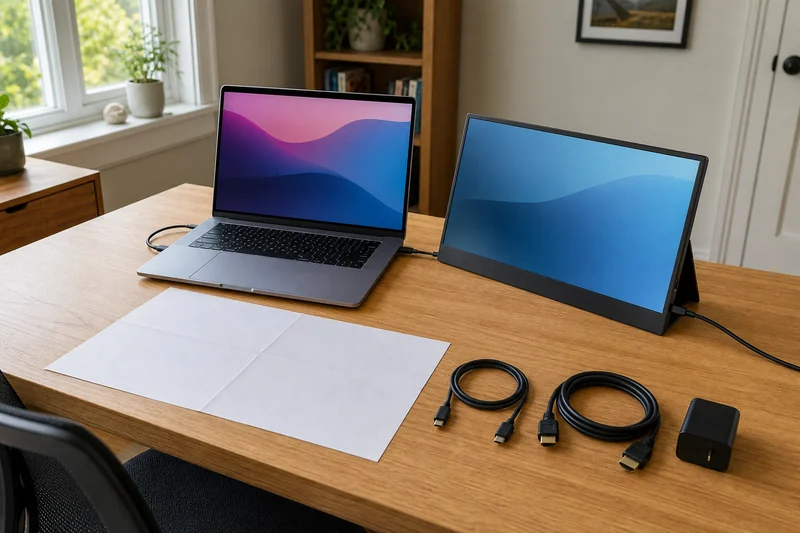
Start with the signal path
A portable monitor can be thin, sharp, and highly rated yet show nothing when the laptop port does not send video. USB-C describes a connector shape, not a guaranteed display signal. The port, cable, adapter, monitor input, and power plan all have to agree.
Before comparing panels, draw the route from laptop to display. Label the exact laptop port, cable, adapter or dock, monitor input, and power source. Check the laptop and monitor manuals for the supported combination.
Confirm what the laptop can send
Look up the exact laptop model rather than assuming every similar port behaves the same way.
| Connection route | What to confirm |
|---|---|
| One USB-C cable | The laptop port supports DisplayPort Alt Mode or Thunderbolt, the cable carries video, and available power is sufficient |
| HDMI plus USB power | The laptop has compatible HDMI output, the monitor has the matching input, and a separate USB source can power the display |
| Dock or adapter | It supports the required video standard, resolution, refresh rate, and operating system |
| Two or more external screens | The laptop model, dock, and operating system support the intended display count |
VESA notes that a USB-C port may exist without DisplayPort Alt Mode. Apple also specifies that a USB-C display adapter must support DisplayPort Alt Mode or Thunderbolt. Those are compatibility boundaries, not optional extras.
Decide whether the job needs one screen or two
Write down the windows that are competing for space. A single portable panel can keep notes, a timeline, chat, or a reference page visible beside the main task. A dual-screen system may help a repeated three-window workflow, but it also adds weight, desk depth, power demand, cables, and setup time.
Try the no-buy version first. Use the laptop's virtual desktops, split-screen view, or an existing compatible tablet as a second display. If the trial does not reduce window switching or errors, another panel may only create more gear to carry.
Measure the loaded desk footprint
Measure the monitor with its stand open, not just the glass. Add room for the laptop, cable bends, power bank or charger, mouse, notebook, and a stable edge clearance. A folio can need more rear depth than an integrated kickstand. A clamp or freestanding dual system can shift the load to a different part of the desk.
Also check the viewing position. The useful screen should sit close enough in height and angle that you are not twisting toward it for hours. A sharp panel does not repair an awkward setup.
Compare the screen only after fit
Resolution changes how much detail fits on screen, but scaling affects readable workspace. A 16:10 panel adds vertical room compared with 16:9. Touch can help a supported Windows workflow, while macOS touch behavior may require vendor software and still differ from a tablet.
Brightness matters near windows and in shared spaces. Color coverage matters more for visual work than for email or spreadsheets. Treat manufacturer specs and independent measurements as different evidence: one identifies the design, while the other shows how a tested sample behaved.
Run a five-minute fit test
Make a paper rectangle for the monitor body and another for the open stand. Place them beside the laptop where the screen would actually sit. Route a spare cable around the same side as the real ports and leave room for the connector.
Then rehearse the work:
- move one repeated reference window to the paper screen;
- check whether the laptop and second screen can face you comfortably;
- verify the cable does not cross the mouse or walking path;
- pack the paper footprint with the charger and accessories you would carry;
- decide whether the saved window switching is worth the setup.
Separate larger text from more workspace
A physically larger panel can make the same pixel layout appear larger at equal scaling. To fit more content, compare resolution and the scaling you can comfortably use; screen diagonal alone does not answer that question. For a monitor that stays at home, include stand adjustment and permanent desk space in the choice. The portable-versus-desktop comparison uses two Full HD examples to make this visible.
Match the dock to both screens
For a second external screen, check the dock’s simultaneous two-screen mode rather than its single-screen maximum. Anker’s A8388 manual lists different limits for one and two screens. Use the five-step docking-station check to match the laptop, both screens, charging and software permission before buying the missing connection.
Bottom line
Confirm the exact video route, power plan, display-count limit, open-stand footprint, and repeated window job before comparing resolution or touch. One simple panel is usually the cleanest upgrade; a dual system earns its size only when the extra screen has a persistent job.
When the setup is clear, compare the three portable-monitor lanes. If a screen is already connected but blank, use the no-signal diagnostic before replacing it.