
Separate power from video
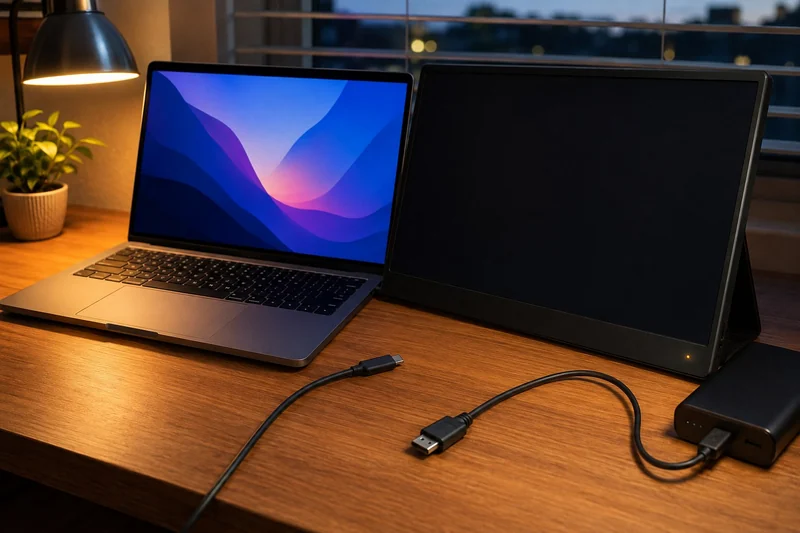
A power light or on-screen menu confirms that the monitor is receiving power. Next, check the laptop’s video output and cable connection. Diagnose the power and video paths separately, changing one part at a time.
Start with one monitor, one direct connection, and the original or a manufacturer-specified power source. Disconnect extra docks, adapters, and displays until the simplest supported route works.
Read the symptom before moving cables
| What you see | First check |
|---|---|
| No light or menu | Power source, power cable, monitor power control, and required wattage |
| Menu appears but says no signal | Selected input, laptop video output, and video-capable cable |
| Image appears and drops out | Power stability, cable seating, adapter, resolution, and cable strain |
| One monitor works but the next does not | Laptop display-count limit, dock capability, and operating-system support |
| Image works but touch does not | USB data route, operating-system support, driver or vendor software |
Use the symptom to choose your next connection check.
Check the input and cable route
Select the input that matches the connected port. A monitor set to HDMI will not listen to USB-C, and the reverse is also true.
For a one-cable USB-C setup, confirm all three parts: the laptop port supports DisplayPort Alt Mode or Thunderbolt, the cable carries video, and the route provides enough power. Some USB-C cables are designed mainly for charging. VESA explicitly notes that not every USB-C port supports DisplayPort Alt Mode.
For HDMI, connect the separate USB power cable if the monitor requires one. An HDMI cable carries the picture; it does not automatically provide the power that a portable panel needs.
Remove the dock and adapter temporarily
Microsoft recommends disconnecting accessories that can conflict with an external display and testing another cable or system. Connect the monitor directly to the laptop with a known-compatible route when possible.
If the direct route works, add the dock, adapter, extension, or second display back one at a time. Check each device's documented resolution, refresh-rate, display-count, and operating-system limits. A dock can be functional and still not support the intended arrangement.
Ask the computer to use the display
On Windows, open display settings and choose an appropriate mode such as Extend. Use the system's Detect option when available. Microsoft also documents the Windows key plus P shortcut for switching projection modes.
On a Mac, open Displays settings after connecting the screen to power and the correct port. Apple says the number of displays a Mac supports depends on the model. Confirm that limit when one screen works but another does not.
Avoid forcing an unsupported resolution or refresh rate. Return to a documented combination and update the operating system, display software, or graphics driver only through the official support path for the exact computer.
Use one substitution at a time
Try, in order:
- the same monitor and port with a known video-capable cable;
- the same monitor on another supported computer;
- the original computer with another known-working display;
- the same direct route before reintroducing a dock or adapter.
This separates monitor, cable, computer, and accessory failures. Stop if a connector is hot, loose, damaged, or requires force.
When support or replacement is reasonable
Contact the manufacturer when the exact supported direct connection fails with known-good power and cable, the monitor cannot show its own menu, the port is damaged, or the display behaves the same way on another compatible computer. Record the laptop model, operating system, monitor model, cable markings, adapter or dock, selected input, and display arrangement.
When the dock is the mismatch
A successful direct connection narrows the next check to the dock, its host cable and its supported modes. For example, the Plugable UD-6950PDH requires DisplayLink software to produce an image; laptop charging alone does not show that its display software is ready. After identifying the failed requirement, use the dock comparison to find a route your computer supports.
Bottom line
Prove power, select the correct input, confirm a real video-capable port and cable, test one direct connection, and verify the laptop's display settings and display-count limit. Most useful diagnostics isolate one link instead of replacing the entire setup.
If the connection works but the screen still does not fit the workflow, return to the portable-monitor fit guide or compare the three monitor lanes.